Home · Games · Call of Duty
Best Call of Duty settings for Warzone and Modern Warfare 4
The best Call of Duty settings for FPS are all in Settings > Graphics. The Display tab sets display mode, V-Sync and NVIDIA Reflex. The Quality tab sets the upscaler and detail. The View tab sets field of view. Warzone and Modern Warfare 4 share the Call of Duty HQ settings menu, so these are also the best Warzone settings for PC.
Boost my performanceLast updated 22 October 2026. Menu labels are from Call of Duty: Modern Warfare 4 on PC, which launches 23 October 2026 and shares the Call of Duty HQ settings menu with Warzone.
The cover art is the Black Ops 3 image from the games grid. Swap it for Warzone or Modern Warfare 4 art before this page goes live.
Graphics settings
Best Call of Duty and Warzone graphics settings
Path: Settings (the gear icon at the top right of the main menu) > Graphics. The Graphics tab has four sub-tabs: Display, Quality, View and Benchmark. Competitive is max FPS plus clarity. Quality is the same menu when the PC already holds its refresh rate.
[TECHNICIAN] Every value in a yellow box on this page is a starting point from published guides and the game's own descriptions. Confirm or replace each one on the current Warzone build after the Modern Warfare 4 launch on 23 October.
[TECHNICIAN] Confirm the labels on the live Warzone menu. Modern Warfare 4 uses "Resolution Scaling Technique" and "Sharpness". The Warzone menu before 23 October used "Render Resolution" and "Upscaling / Sharpening". Also add an FPS impact column (high, medium, low) once tested. The game shows its own VRAM, CPU and GPU impact tag on each row.
| Setting | Competitive | Quality | Why |
|---|---|---|---|
| Display Mode | Fullscreen Exclusive | Fullscreen Borderless | Screen Refresh Rate and Display Resolution only unlock in Fullscreen Exclusive. Fullscreen Borderless is the default and suits players who alt-tab. |
| Screen Refresh Rate | Highest available | Highest available | A 144 Hz monitor left at 60 Hz only shows a fraction of your frames. |
| Display Resolution | Native | Native | The game recommends keeping the native display resolution and using an upscaler for extra frames. |
| Display Gamma | 2.2 (sRGB) | 2.2 (sRGB) | 2.2 (sRGB) is the monitor choice. 2.4 (BT1886) is the TV choice. |
| NVIDIA Reflex Low Latency | On | On + Boost, if frames hold | On + Boost keeps GPU clocks high when the processor is the limit. The game says it increases GPU power draw. |
| V-Sync (Gameplay) | Off | Off | The game says V-Sync avoids screen tearing but induces some input lag. |
| V-Sync (Menus) | Off | Off | This setting only applies in menus. |
| Custom Frame Rate Limit | Custom, G-Sync cap below | Unlimited | Custom opens the cap value under Show More. Use the cap when G-Sync is on. |
| Background Shader Preloading | On | On | The game prepares shaders after each update, before your next session. See the stutter section. |
| Setting | Competitive | Quality | Why |
|---|---|---|---|
| Graphic Preset | Recommended, then Custom | Recommended, then Custom | The preset changes almost every other row on this tab, so pick it first and change single rows after. |
| Resolution Scaling Technique | Filmic SMAA T2X at native | NVIDIA DLSS, AMD FSR or Intel XeSS, Quality | Filmic SMAA T2X is the default anti-aliasing. DLSS, FSR and XeSS upscale for more frames. |
| Sharpness | 50 (default) | 50 (default) | Sharpness changes how crisp the image looks. |
| Frame Generation | Off | Off | Generated frames raise the FPS counter without making the controls respond faster. |
| Ray Tracing | Off | Off | Ray tracing is the heaviest option on the tab. |
| Variable Rate Shading | On | On | Variable Rate Shading is on by default. |
| World Motion Blur | Off | Off | Motion blur makes targets harder to read while you turn. |
| Weapon Motion Blur | Off | Off | The game applies this blur to the weapon while you move, aim and fire. |
| World Depth of Field | Off | Cutscenes Only | On blurs near and far objects during gameplay. Cutscenes Only is the default. |
| Film Grain | 0 | 0 | The default is 0.20. Film grain adds noise over the image. |
| Setting | Competitive | Quality | Why |
|---|---|---|---|
| Texture Resolution | Low on 6 GB video memory, Normal on 8 GB | Normal or High | Textures cost video memory more than frames. |
| Texture Filter Anisotropic | High | High | Ground and wall textures stay clear at an angle. |
| VRAM Scale Target | 70 to 80 | 80 | A lower target leaves video memory for Windows. Check the Estimated VRAM Usage bar at the foot of the page. |
| Shader Quality | Low | Normal | Shader Quality is one of the first rows to lower when the GPU is the limit. |
| Particle Resolution | Very Low | Low | Particles are the smoke and explosion effects in busy fights. |
| Shadow Quality | Low | Normal | Low still keeps basic depth cues. |
| Occlusion and Screen Space Lighting | Off | Off | This row can make dark corners harder to read. |
| Screen Space Reflections | Off | Off | Reflections add visual noise without making players easier to see. |
| Volumetric Quality | Low | Low | Volumetric Quality sets fog and light beams. |
| On-Demand Texture Streaming | Minimal | Optimized | The game downloads higher-quality textures while you play, which uses your connection. |
[TECHNICIAN] The Advanced Quality Settings labels above come from the Warzone menu. Confirm each row still exists under Quality > Advanced Quality Settings in the current build.
| Setting | Value | Why |
|---|---|---|
| Field of View (FOV) | 105 to 110 | The default is 95. The game warns that values different from the default may lower the frame rate. |
| ADS Field of View | Affected | Affected keeps the aim-down-sights view in step with your field of view. |
| 1st Person Camera Movement | Least | Less camera shake while you move and take damage. |
G-Sync FPS cap
If you cap FPS yourself for G-Sync, "a few frames under the refresh rate" is too high once the monitor is 240 Hz or above. These are Hypertune's starting points for smoother frame pacing. They are not the lowest-delay setup. Lowest delay is Unlimited with G-Sync off. Set the number in Custom Frame Rate Limit, under Show More.
[TECHNICIAN] The caps below are the approved CS2 caps. Confirm they apply to Call of Duty's Custom Frame Rate Limit, or replace them.
| Refresh rate | Cap |
|---|---|
| 144 Hz | 139 FPS |
| 240 Hz | 226 FPS |
| 360 Hz | 328 FPS |
| 480 Hz | 424 FPS |
| 500 Hz | 439 FPS |
Sensitivity
Call of Duty sensitivity
This is an extremely basic way to find a starting Call of Duty sensitivity. Path: Settings > Keyboard & Mouse. A full mouse-pad swipe should land between a 180 and a 360. Practice flicks in the Firing Range. If you under-flick, raise it. If you over-flick, lower it. Then leave it alone.
| DPI | Mouse Sensitivity |
|---|---|
| 400 | Value needed |
| 800 | Value needed |
| 1600 | Value needed |
| Setting | Value |
|---|---|
| ADS Sensitivity Multiplier | 1.00 |
| Mouse Acceleration | 0 |
| Mouse Filtering | 0 |
| Mouse Smoothing | Off |
Game and audio
Call of Duty game and audio settings
The FPS counter is on the Interface tab, not under Graphics. The audio settings are on the Audio tab.
| Setting | Value |
|---|---|
| Interface > Telemetry | FPS, Processor (CPU) Time and Graphic Card (GPU) Time on |
| Audio Mix | Headphones preset, name to confirm |
| Gameplay Music Volume | 0 |
| Effects Volume | 100 |
| Dialogue Volume | Low enough to hear footsteps |
| Mono Audio | Off |
[TECHNICIAN] Confirm the Audio Mix preset names in the current build. Black Ops 7 lists presets such as Headphone Bass Cut and Treyarch Mix; the Modern Warfare 4 names may differ.
With CPU Time and GPU Time on screen, play one match. The higher number shows which part holds the frame back. That tells you whether NVIDIA Reflex On or On + Boost fits your PC.
Settings by PC
Best Call of Duty settings by PC
The three tiers use the graphics cards in Activision's Modern Warfare 4 PC specifications (Activision support, 1 October 2026): minimum, recommended, and ray tracing.
| Setting | Low-end (GTX 1060, RX 470) | Mid-range (RTX 3060 Ti, RX 6600 XT) | High-end (RTX 5070 Ti, RX 9070 XT and up) |
|---|---|---|---|
| Graphic Preset | Value needed | Value needed | Value needed |
| Resolution Scaling Technique | Value needed | Value needed | Value needed |
| Texture Resolution | Value needed | Value needed | Value needed |
| VRAM Scale Target | Value needed | Value needed | Value needed |
| Shadow Quality | Value needed | Value needed | Value needed |
| Ray Tracing | Value needed | Value needed | Value needed |
| NVIDIA Reflex Low Latency | Value needed | Value needed | Value needed |
The Windows and NVIDIA settings are the same on every PC.
After the settings
Warzone stutter, shader preloading and overlays
Shader preloading
Call of Duty prepares shaders before you play, and the game says Shader Preloading prevents performance issues on a map. Let Shader Preloading finish in the main menu before your first match, because leaving the main menu stops it. After a new graphics driver, open Settings > Graphics > Display, select Restart Shader Preloading, and restart the game. Do this after a driver update, not before every match.
Advanced Shader Delivery
For Modern Warfare 4, Activision delivers precompiled shaders through Advanced Shader Delivery when the Xbox PC app is installed, on any PC store. Install the Xbox PC app and the latest graphics driver before you launch.
Graphics driver
Activision lists these drivers for Modern Warfare 4 (Activision support, 1 October 2026): NVIDIA 616.56, AMD 26.7.1 and Intel 32.0.101.8974. Check the Activision support page for the current list, because it changes with updates.
Video memory
If Call of Duty starts to hitch after a few matches, lower VRAM Scale Target and Texture Resolution, then watch the Estimated VRAM Usage bar at the foot of the Graphics page.
NVIDIA and Discord overlays
Turn off the NVIDIA overlay in the NVIDIA App, and turn off the Discord overlay in Discord's settings. Those two cost more than the Windows capture toggle.
Connection
If frames are steady and the game still feels late, open the Account & Network tab. It shows Latency and Packet Loss, but only in public games. A network hitch is not the same as an FPS drop.
[TECHNICIAN] Confirm the video memory fix and the VRAM Scale Target values, and whether the overlay line from CS2 holds for Call of Duty. Also confirm whether a memory speed line belongs here, as on the CS2 page.
Windows and NVIDIA
Windows and NVIDIA settings for Call of Duty
These five Windows settings and the NVIDIA 3D settings below are the ones Hypertune's technicians approved for CS2 on 22 October 2026, with the Call of Duty program file in place of the CS2 one.
[TECHNICIAN] Confirm the Call of Duty executable is cod.exe for the current launcher (Battle.net, Steam and the Xbox PC app). Also confirm that Set affinity on cod.exe works with RICOCHET Anti-Cheat running, or drop step 4.
Windows settings for Call of Duty
Hardware-accelerated GPU scheduling: On. Settings > System > Display > Graphics > Advanced graphics settings. Restart the PC after changing it.
High performance graphics for Call of Duty. Settings > System > Display > Graphics, add cod.exe, then Options > High performance.
Turn off background and startup apps. Task Manager > Startup apps, and disable what you do not need running while you play.
Take core 0 away from Call of Duty. With Call of Duty running, open Task Manager > Details, right-click cod.exe > Set affinity and untick CPU 0. If your processor has Hyper-Threading, untick CPU 0 and CPU 1. Windows resets this each time Call of Duty starts.
High Performance power plan. Control Panel > Hardware and Sound > Power Options > High performance. If it is not listed, open Show additional plans.
NVIDIA Control Panel settings for Call of Duty
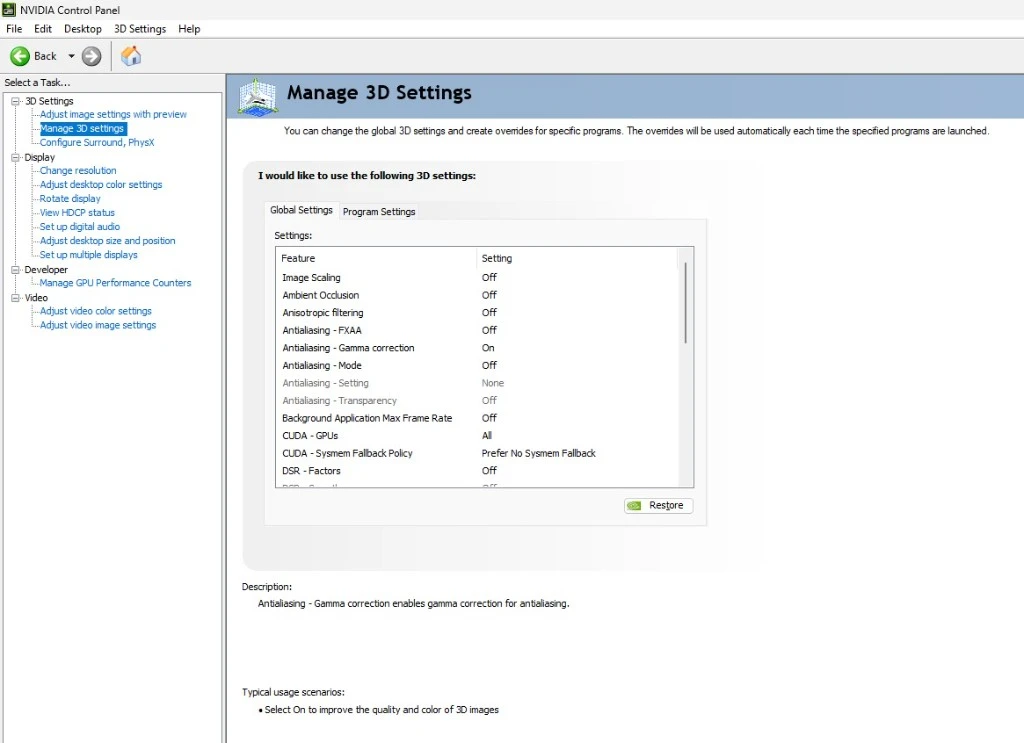
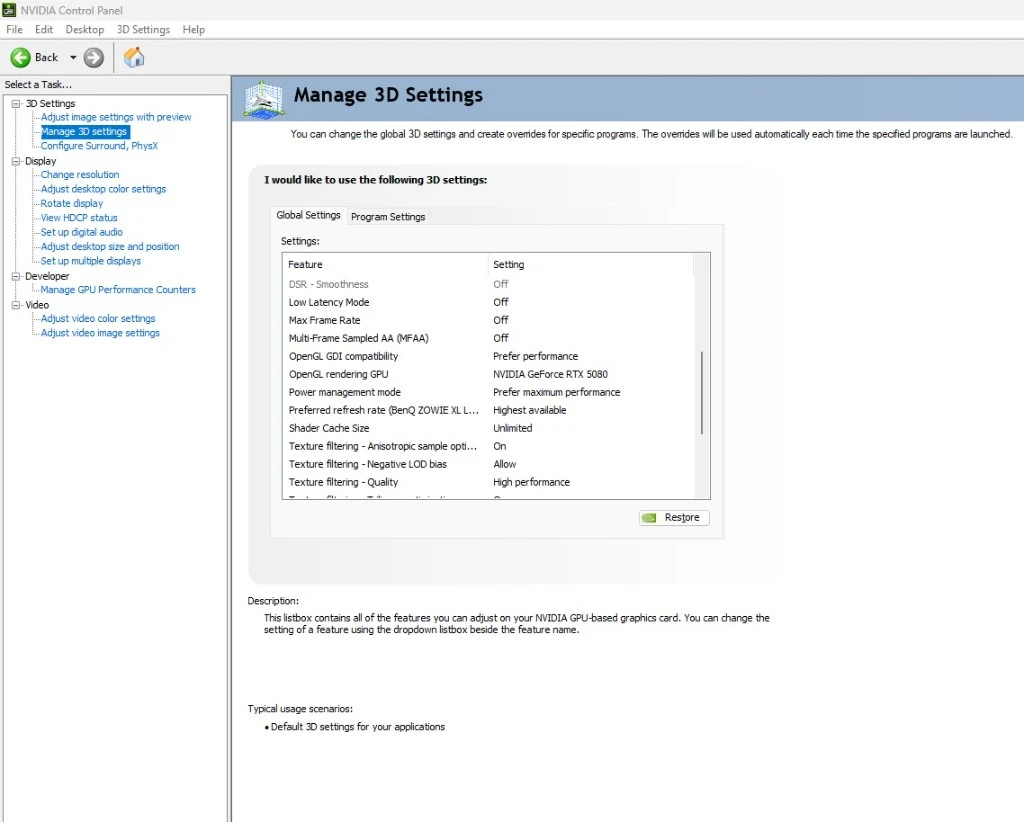
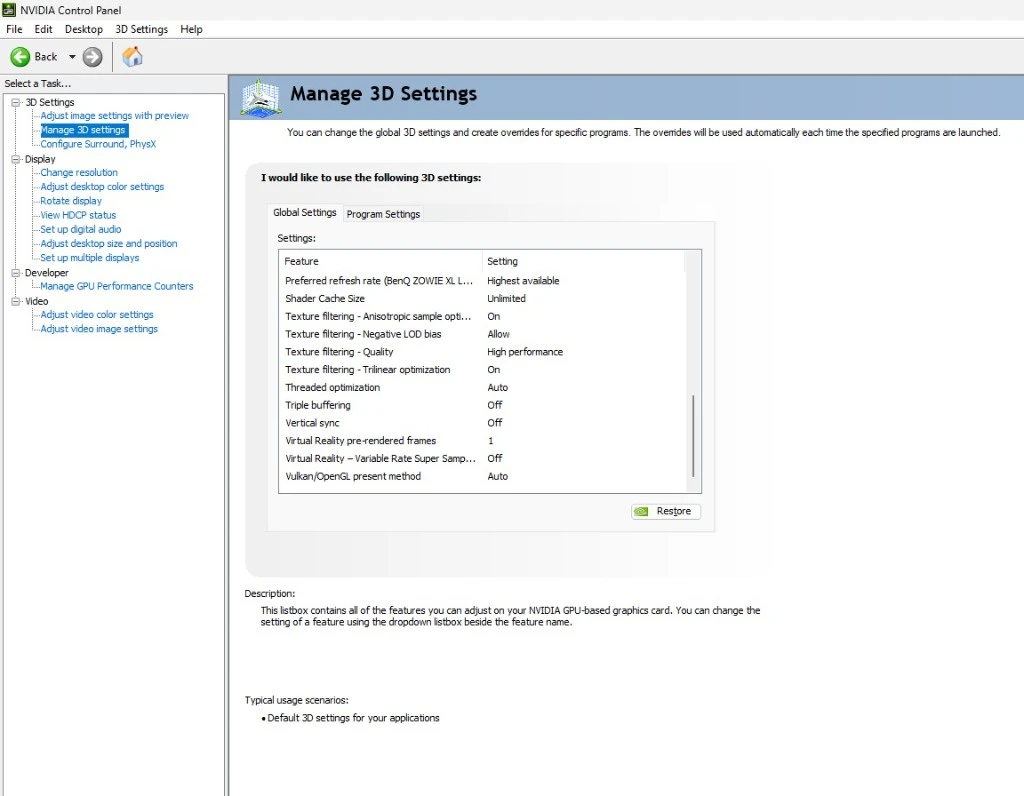
Open NVIDIA Control Panel, then 3D Settings > Manage 3D settings > Global Settings. Anything not in this table stays on its default.
[TECHNICIAN] Do the same NVIDIA 3D settings apply to Call of Duty as to CS2? Confirm each row, or list the rows that change.
| Feature | Setting |
|---|---|
| Image Scaling | Off |
| Ambient Occlusion | Off |
| Anisotropic filtering | Off |
| Antialiasing - FXAA | Off |
| Antialiasing - Gamma correction | On |
| Antialiasing - Mode | Off |
| Background Application Max Frame Rate | Off |
| CUDA - GPUs | All |
| CUDA - Sysmem Fallback Policy | Prefer No Sysmem Fallback |
| DSR - Factors | Off |
| Low Latency Mode | Off |
| Max Frame Rate | Off |
| Multi-Frame Sampled AA (MFAA) | Off |
| OpenGL GDI compatibility | Prefer performance |
| OpenGL rendering GPU | Your NVIDIA graphics card |
| Power management mode | Prefer maximum performance |
| Preferred refresh rate | Highest available |
| Shader Cache Size | Unlimited |
| Texture filtering - Anisotropic sample optimization | On |
| Texture filtering - Negative LOD bias | Allow |
| Texture filtering - Quality | High performance |
| Texture filtering - Trilinear optimization | On |
| Threaded optimization | Auto |
| Triple buffering | Off |
| Vertical sync | Off |
| Virtual Reality pre-rendered frames | 1 |
| Virtual Reality - Variable Rate Super Sampling | Off |
| Vulkan/OpenGL present method | Auto |
Hypertune
Let Hypertune do it
The Call of Duty settings above are free. Hypertune does the parts most players skip, on the PC itself: CPU Overclocking, GPU Overclocking, Windows Debloating, Network Optimizations and Memory Optimizations, applying only what you turn on. Hypertune stress-tests every overclock and skips it if your cooling can't hold it, creates a restore point, and reverts in one click. Hypertune makes no unsafe changes.
Game Hub profiles in Hypertune today cover Valorant, CS2, Marvel Rivals, Overwatch, League of Legends, Escape from Tarkov, Wardogs, Apex Legends, KovaaK's, Deadlock, Aimlabs, Rainbow Six Siege, Rust, ARC Raiders and Fortnite. For Call of Duty, Hypertune works through the system features above.
[AUSTIN] Is a Call of Duty Game Hub profile planned for Modern Warfare 4? If yes, this section gains one line and the Game Profiles screenshot.
Up to 60% higher FPS; results vary by hardware and game. See how Hypertune works
Anti-cheat
Hypertune and RICOCHET Anti-Cheat
Call of Duty uses RICOCHET Anti-Cheat. Hypertune makes no unsafe changes. Read the safety page.
[AUSTIN] May the page name RICOCHET Anti-Cheat (V8 open question 3)? Modern Warfare 4 on PC also requires TPM 2.0 and Secure Boot (Activision support, 1 October 2026). Please confirm no Hypertune feature changes either setting.
Questions
Call of Duty and Warzone settings FAQ
Do Warzone and Modern Warfare 4 use the same settings?
Yes. Warzone and Modern Warfare 4 share the Call of Duty HQ settings menu, so the tables on this page cover both.
Why is my Warzone FPS so low?
Start with the Display tab and the Quality tab. V-Sync (Gameplay) on, a refresh rate below the monitor's highest, and Ray Tracing on are the first rows to check. Then turn on CPU Time and GPU Time under Interface > Telemetry to see which part holds the frame back.
Why does Warzone stutter even with high FPS?
Warzone stutter after an update or a new driver usually comes from shaders that are not ready yet. Let Shader Preloading finish in the main menu, and use Restart Shader Preloading after a driver update. Then turn off the NVIDIA and Discord overlays.
Should I use DLSS, FSR or XeSS in Call of Duty?
Call of Duty offers NVIDIA DLSS, AMD FSR, Intel XeSS and Filmic SMAA T2X under Resolution Scaling Technique. The game recommends keeping the native display resolution and choosing an upscaler for extra frames. Which upscaler and mode to recommend per graphics card
What are the best Warzone settings for FPS and visibility?
Use the Competitive columns in the tables above. One-line summary of the Competitive column, after the values are confirmed
Does Hypertune have a Call of Duty profile?
Not today. For Call of Duty, Hypertune works on the PC itself with CPU Overclocking, GPU Overclocking, Windows Debloating, Network Optimizations and Memory Optimizations.
More games
Settings guides for other games
Coming soon.